How It’s Organized
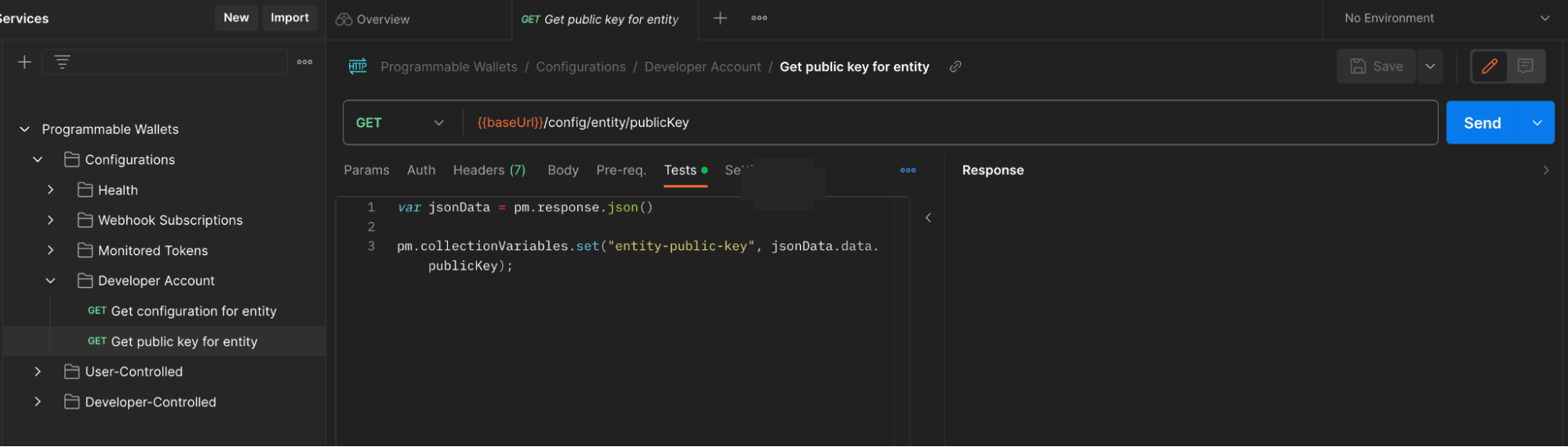
We’ve created a Developer Services Postman Workspace that includes one collection per product i.e. Wallets and Contracts. Within each of these collections are folders that are organized in a way that matches our API References.How To Use It
Start by selectingRun in Postman below. From there, you can then choose to
fork the collection to your workspace, view the collection in the public
workspace, or import the collection into Postman.
- Fork: Creates a copy of the collection while maintaining a link to the parent.
- View: Allows you to quickly try out the API without having to import anything into your Postman suite.
- Import: Creates a copy of the collection but does not maintain a link to Circle’s copy.
| Collection | Run it! |
|---|---|
| Wallets |  |
| Contracts | |
Additional Configuration
Authorization
For authorization, you can paste your API key in the “Authorization” tab of the collection, as shown in the image below. If you do not have an API Key, you can acquire one by signing up for a Circle Developer account in the Circle Console. If you’d like to store your API key as a variable for more advanced testing, you can learn more in Postman’s variables guide.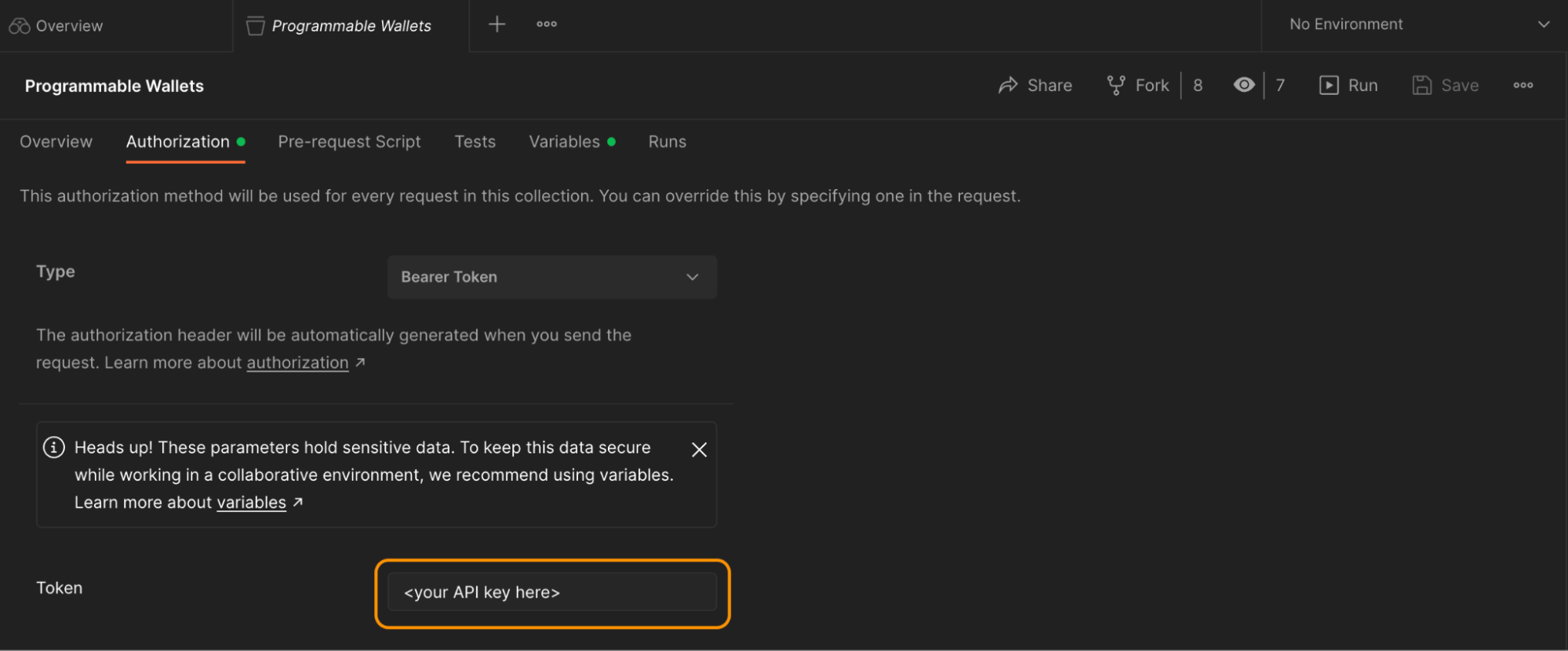
Entity Secret
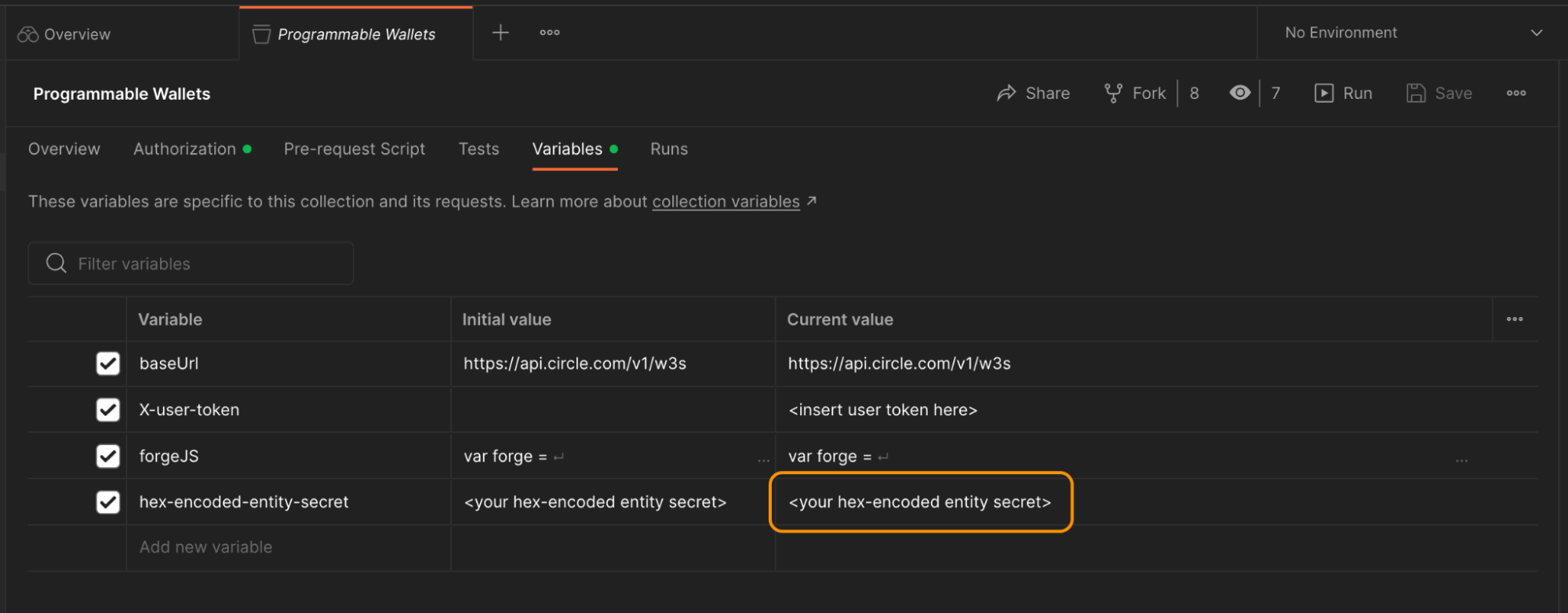
If you’re using developer-controlled wallets, you’ll need to generate a unique 32-byte entity secret. To that end, visit our Register Your Entity Secret Quickstart guide. Once you’ve registered your entity secret in your Circle Console, you can add your hex-encoded entity secret (not the encrypted entity secret ciphertext) as the variable value shown below.