> ## Documentation Index
> Fetch the complete documentation index at: https://circle-devdocs-test-ai-codegen-component.mintlify.site/llms.txt
> Use this file to discover all available pages before exploring further.
# Reset Account Pin Code
> Walk a user through the steps in resetting a known account PIN code.
This guide outlines how to enable a user to reset their PIN code. Note users
must know their original PIN code to reset it. Otherwise, they must follow the
Account Recovery flow outlined in this
[guide](/wallets/user-controlled/recover-account).
**Caution**: If a user loses both their PIN code and the answers to their
Security Questions, they will be permanently locked out of their account,
losing access to all of their wallets and assets.
## Prerequisites
Before you begin, make sure you have:
* Completed the
[Create Your First Wallet guide](/wallets/user-controlled/react-native-sdk-ui-customization-api)
to set up a user and their first wallet.
* Followed the
[Receive Inbound Transfer guide](/wallets/user-controlled/receive-inbound-transfer)
or
[Send Outbound Transfer guide](/wallets/user-controlled/send-outbound-transfer)
to initialize user activity (optional, but helps validate wallet
functionality).
* Installed and configured the
[sample app](/sample-projects#user-account-creation-and-email-login-and-pin-authorization-flow)
for your platform (web, iOS, or Android).
* Registered a callback to handle the **Reset PIN** flow. This includes:
1. Sending the reset PIN request
2. Handling the challenge response
3. Completing the PIN verification
> See the
> [sample app](/sample-projects#user-account-creation-and-email-login-and-pin-authorization-flow)
> for an example implementation.
## Steps
Follow these steps to guide a user through resetting their PIN using the
user-controlled wallets SDK:
## 1. Run the Sample App
After you set up one of the web, iOS, or Android
[sample applications](/sample-projects#user-account-creation-and-email-login-and-pin-authorization-flow),
you can:
1. Run the sample app and simulator.
2. Obtain your App ID. To get the App ID, do one of the following:
1. Access the developer console and navigate to the
[configurator](https://console.circle.com/wallets/user/configurator)
within user-controlled wallets. From there, copy the App ID.
2. Make an API request to
[GET /config/entity](/api-reference/wallets/programmable-wallets/get-entity-config)
and copy the App ID from the response body.
3. Add the App ID to the sample app.
## 2. Acquire a Session Token
Next, you need to acquire a session token. To do this, you make a request to
the[`POST /users/token`](/api-reference/wallets/user-controlled-wallets/get-user-token)
using the previously created `userId` in Step 1. The `userToken` is a 60-minute
session token used to initiate requests requiring a user challenge (PIN code
entry). After 60 minutes, the session expires, and a you must generate a new
`userToken` using the same endpoint.
From this response, you can acquire the `encryptionKey` and `userToken` which
you provide in the respective sample app fields. You also use the `userToken` in
the next step.
```javascript Node.js SDK theme={null}
// Import and configure the user-controlled wallet SDK
const {
initiateUserControlledWalletsClient,
} = require("@circle-fin/user-controlled-wallets");
const circleUserSdk = initiateUserControlledWalletsClient({
apiKey: "",
});
const response = await circleUserSdk.createUserToken({
userId: "2f1dcb5e-312a-4b15-8240-abeffc0e3463",
});
```
```coffeescript Python SDK theme={null}
import uuid
from circle.web3 import user_controlled_wallets
from circle.web3 import utils
client = utils.init_user_controlled_wallets_client(api_key="Your API KEY")
# create an api instance
api_instance = user_controlled_wallets.UsersAndPinsApi(client)
# get user token
try:
request = user_controlled_wallets.GenerateUserTokenRequest.from_dict({"userId": ""})
response = api_instance.get_user_token(request)
print(response)
except user_controlled_wallets.ApiException as e:
print("Exception when calling UsersAndPinsApi->get_user_token: %s\n" % e)
```
```curl Curl theme={null}
curl --request POST \
--url 'https://api.circle.com/v1/w3s/users/token' \
--header 'accept: application/json' \
--header 'content-type: application/json' \
--header 'authorization: Bearer ' \
--data '
{
"userId": "2f1dcb5e-312a-4b15-8240-abeffc0e3463"
}
'
```
```json Response body theme={null}
{
"data": {
"userToken": "eyJhbGciOiJSUzI1NiIsInR5cCI6IkpXVCC9.eyJkZXZlbG9wZXJFbnRpdHlFbnZpcm9ubWVudCI6IlRFU1QiLCJlbnRpdHlJZCI6IjRlMDdhOGM5LTIxOTAtNDVlNC1hNjc0LWQyMGFkNjg4MWI3YyIsImV4cCI6MTY5MDU1MjcwNywiaWF0IjoxNjkwNTQ5MTA3LCJpbnRlcm5hbFVzZXJJZCI6ImQ2ZjkzODliLWQ5MzUtNWFlYy1iOTVhLWNjNTk1NjA2YWM5NiIsImlzcyI6Imh0dHBzOi8vcHJvZ3JhbW1hYmxlLXdhbGxldC5jaXJjbGUuY29tIiwianRpIjoiMmE0YmJlMzAtZTdkZi00YmM2LThiODMtNTk0NGUyMzE2ODlkIiwic3ViIjoiZXh0X3VzZXJfaWRfOSJ9.dhfByhxZFbJx0XWlzxneadT4RQWdnxLu3FSN9ln65hCDOfavaTL1sc4h-jUR8i4zMmfdURw3FFcQIdSbm-BUg6M7FP_fp-cs9xBbNmRZa31gMd1aKdcajJ9SvlVrfUowYfGXM3VcNF8rtTFtW-gk1-KzU4u10U35XXbbMcW1moxE0Rqx_fKotDgk2VdITuuds5d5TiQzAXECqeCOCtNoDKktMkglltbnLxOaRl2ReZjGt-ctD2V0DbYNO4T_ndPSUDI6qD7dXQRed5uDcezJYoha3Qj3tFGBglEnox2Y6DWTbllqjwmfTGrU8Pr0yz4jQz7suGwmiCzHPxcpYxMzYQ",
"encryptionKey": "Tlcyxz7Ts9ztRLQq5+pic0MIETblYimOo2d7idV/UFM="
}
}
```
## 3. Initialize PIN reset and Acquire Challenge ID
Make a request to
[`PUT /user/pin`](/api-reference/wallets/user-controlled-wallets/create-user-pin-challenge)
using the `userToken` returned from Step 1. This call returns a `challengeId`,
which is used with the Circle Programmable Wallet SDK to have the user reset
their PIN code.
```javascript Node.js SDK theme={null}
const response = await circleUserSdk.updateUserPin({
userToken: "",
});
```
```coffeescript Python SDK theme={null}
# create an api instance
api_instance = user_controlled_wallets.UsersAndPinsApi(client)
# get user token
try:
request = user_controlled_wallets.ChangePinRequest.from_dict({
"idempotencyKey": str(uuid.uuid4()),
})
response = api_instance.update_user_pin_challenge("", request)
print(response)
except user_controlled_wallets.ApiException as e:
print("Exception when calling UsersAndPinsApi->update_user_pin_challenge: %s\n" % e)
```
```curl Curl theme={null}
curl --request PUT \
--url 'https://api.circle.com/v1/w3s/user/pin' \
--header 'accept: application/json' \
--header 'content-type: application/json' \
--header 'authorization: Bearer ' \
--header 'X-User-Token: ' \
--data '
{
"idempotencyKey": "2532e703-d5a6-4927-b914-adf1c7017984"
}
'
```
```json JSON theme={null}
{
"data": {
"challengeId": "c4d1da72-111e-4d52-bdbf-2e74a2d803d5"
}
}
```
## 4. Reset the PIN in the Sample App
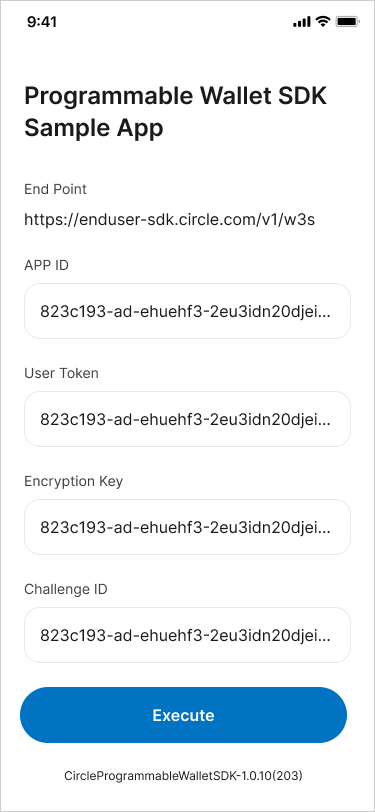
Using the sample application, enter the `userToken` and `secretKey` returned
from Step 1. Enter the `challengeId` returned from Step 2.
Make sure a callback is registered; otherwise, clicking the **Reset PIN** button
will have no effect.
You should be ready to execute the reset PIN code workflow via the Circle
Programmable Wallet SDK. Once you've entered the required fields indicated in
Step 3, click **Execute** to continue.
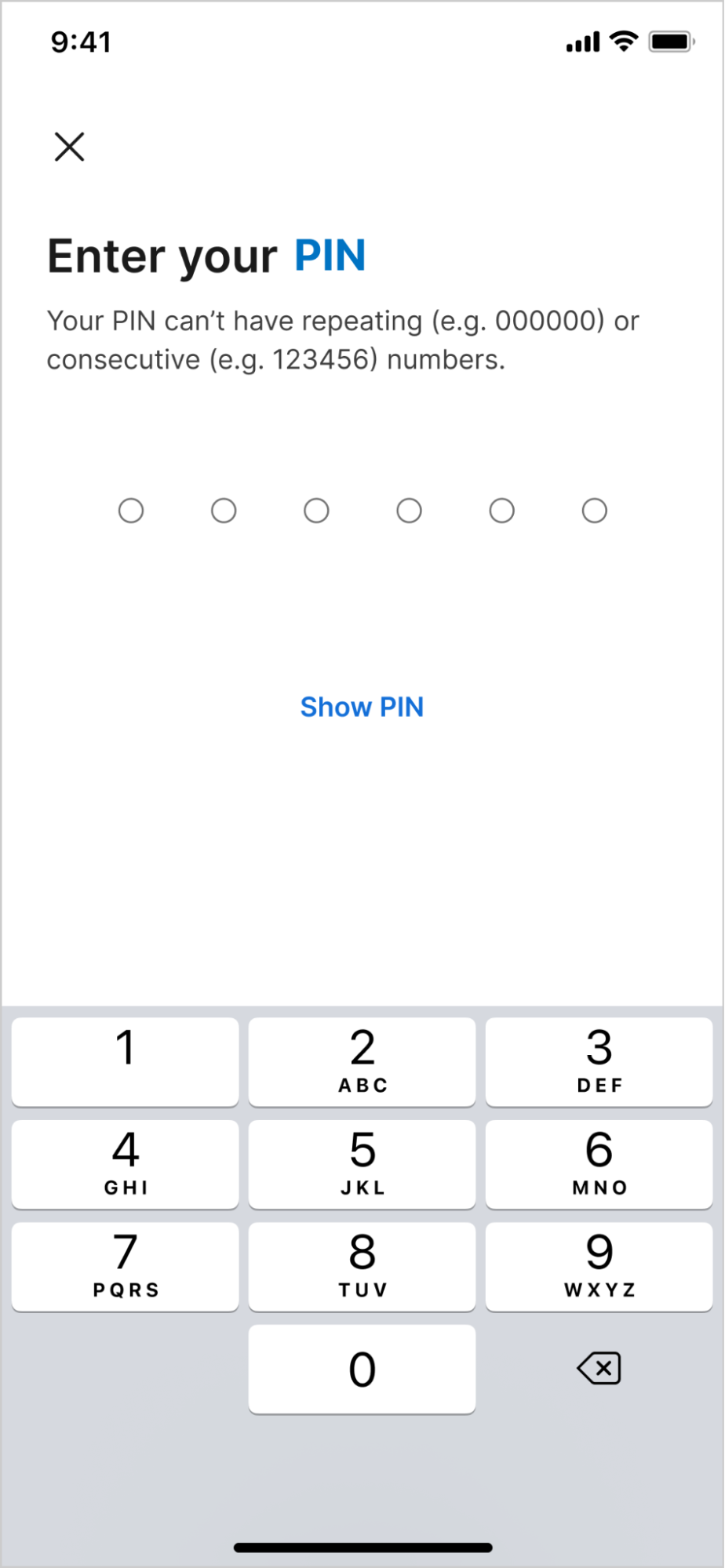
 The sample application takes you through the authentication and PIN code reset
process, which includes the user entering their PIN code to authorize the reset
and entering a new PIN code.
The sample application takes you through the authentication and PIN code reset
process, which includes the user entering their PIN code to authorize the reset
and entering a new PIN code.
 ## 5. Check the Challenge Status
Make a request
[`GET /user/challenges/{id}`](/api-reference/wallets/user-controlled-wallets/get-user-challenge)
using the `challengeId` received from Step 2 to retrieve the status of the
challenge. Additionally, Circle sends a notification to a
[subscribed endpoint](/wallets/webhook-notifications) once the PIN code reset is
complete. For a full list of possible `statuses`, see the
[Asynchronous States and Statuses guide](/w3s/asynchronous-states-and-statuses).
```javascript Node.js SDK theme={null}
const response = await circleUserSdk.getUserChallenge({
userToken: "",
challengeId: "",
});
```
```coffeescript Python SDK theme={null}
# create an api instance
api_instance = user_controlled_wallets.UsersAndPinsApi(client)
# get user token
try:
request = user_controlled_wallets.ChangePinRequest.from_dict({
"idempotencyKey": str(uuid.uuid4()),
})
response = api_instance.get_user_challenge("", "")
print(response)
except user_controlled_wallets.ApiException as e:
print("Exception when calling UsersAndPinsApi->get_user_challenge: %s\n" % e)
```
```curl Curl theme={null}
curl --request GET \
--url 'https://api.circle.com/v1/w3s//user/challenges/{id}' \
--header 'accept: application/json' \
--header 'content-type: application/json' \
--header 'authorization: Bearer ' \
--header 'X-User-Token: '
```
```json Response Body theme={null}
{
"data": {
"challenge": {
"id": "c4d1da72-111e-4d52-bdbf-2e74a2d803d5",
"correlationIds": ["54399e5a-1bf6-4921-9559-10c1115678cd"],
"status": "COMPLETED",
"type": "CHANGE_PIN"
}
}
}
```
## 5. Check the Challenge Status
Make a request
[`GET /user/challenges/{id}`](/api-reference/wallets/user-controlled-wallets/get-user-challenge)
using the `challengeId` received from Step 2 to retrieve the status of the
challenge. Additionally, Circle sends a notification to a
[subscribed endpoint](/wallets/webhook-notifications) once the PIN code reset is
complete. For a full list of possible `statuses`, see the
[Asynchronous States and Statuses guide](/w3s/asynchronous-states-and-statuses).
```javascript Node.js SDK theme={null}
const response = await circleUserSdk.getUserChallenge({
userToken: "",
challengeId: "",
});
```
```coffeescript Python SDK theme={null}
# create an api instance
api_instance = user_controlled_wallets.UsersAndPinsApi(client)
# get user token
try:
request = user_controlled_wallets.ChangePinRequest.from_dict({
"idempotencyKey": str(uuid.uuid4()),
})
response = api_instance.get_user_challenge("", "")
print(response)
except user_controlled_wallets.ApiException as e:
print("Exception when calling UsersAndPinsApi->get_user_challenge: %s\n" % e)
```
```curl Curl theme={null}
curl --request GET \
--url 'https://api.circle.com/v1/w3s//user/challenges/{id}' \
--header 'accept: application/json' \
--header 'content-type: application/json' \
--header 'authorization: Bearer ' \
--header 'X-User-Token: '
```
```json Response Body theme={null}
{
"data": {
"challenge": {
"id": "c4d1da72-111e-4d52-bdbf-2e74a2d803d5",
"correlationIds": ["54399e5a-1bf6-4921-9559-10c1115678cd"],
"status": "COMPLETED",
"type": "CHANGE_PIN"
}
}
}
```