> ## Documentation Index
> Fetch the complete documentation index at: https://circle-devdocs-test-ai-codegen-component.mintlify.site/llms.txt
> Use this file to discover all available pages before exploring further.
# Authentication Methods
> Authenticate your users using social login, email, or PIN
Circle provides several authentication methods that allow you to build an
onboarding experience for your application that is familiar to your users.
Choose between social logins, email, or PIN and security questions to
authenticate your users and create user-controlled wallets for them.
* **Social logins** - Allow your users to log in with their Google, Apple, or
Facebook account, via OAuth 2.0.
* **Email** - Send your users an email containing a one-time password (OTP) for
identity verification.
* **PIN** - Allow your users to create a PIN that must be used to authorize
every transaction. Enable biometrics for users to authorize transactions with
their fingerprint or through facial recognition.
## Authentication method differences
The following table describes the onboarding UX, signing UX, and key management
for each authentication method.
* **Onboarding UX** - User experience upon signing up for your application.
* **Signing UX** - User experience for previewing and confirming signature or
transaction details.
* **Key Management** - How a user’s private key is managed.
| Authentication Methods | Onboarding UX | Signing UX | Key Management |
| ---------------------- | ----------------------------------------------------------------------------------------------------------------------------- | ---------------------------------------------------------------------------------------------------------------------------------------------------------------------------------------------------------------------------------------------------------------------------------------------------- | ---------------------------------------------------------------------------------------------------------------------------------------------------------------------------------------------------------------------------------------------------------------------------------------------------------------------- |
| Social logins | Redirects users to the social provider’s login page where they can choose the account with which they want to create wallets. | Circle displays predefined confirmation UIs to allow users to preview and confirm transaction or signature details with one click. You can customize these UIs for on-chain actions relevant to your scenarios. You can also disable confirmation UIs if you want to fully customize the signing UX. | Circle implements a series of cryptographic procedures that protects key shares and stores a part of key shares on the user's device (secure enclave). This ensures that the private key is invoked only when the user performs a transaction request, contract execution, or signature signing from their own device. |
| Email | Prompts users to sign up with their email address and sends them an email containing an OTP to verify their identity. | Circle displays predefined confirmation UIs to allow users to preview and confirm transaction or signature details with one click. You can customize these UIs for on-chain actions relevant to your scenarios. You can also disable confirmation UIs if you want to fully customize the signing UX. | Circle implements a series of cryptographic procedures that protects key shares and stores a part of key shares on the user's device (secure enclave). This ensures that the private key is invoked only when the user performs a transaction request, contract execution, or signature signing from their own device. |
| PIN | Prompts users to set up a PIN and answers to security questions. | Circle does not provide UIs for transaction details. After previewing a signature or transaction, users confirm authorization by inputting a PIN or through biometrics, if enabled. | Users are required to set up a PIN code to authorize transactions. They have sole access to their private keys, which ensures privacy and prevents unauthorized access or movement of assets |
## Social logins
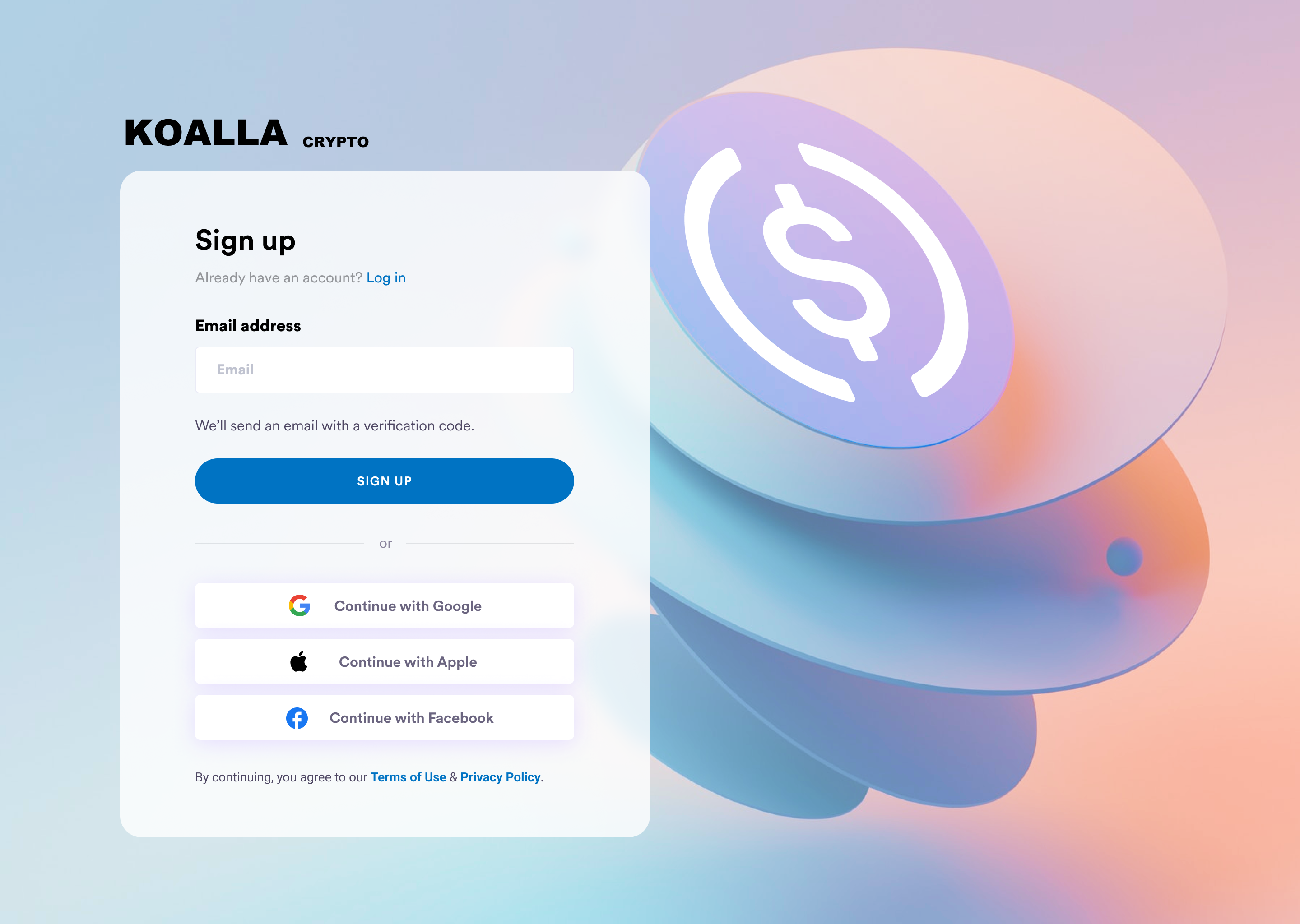
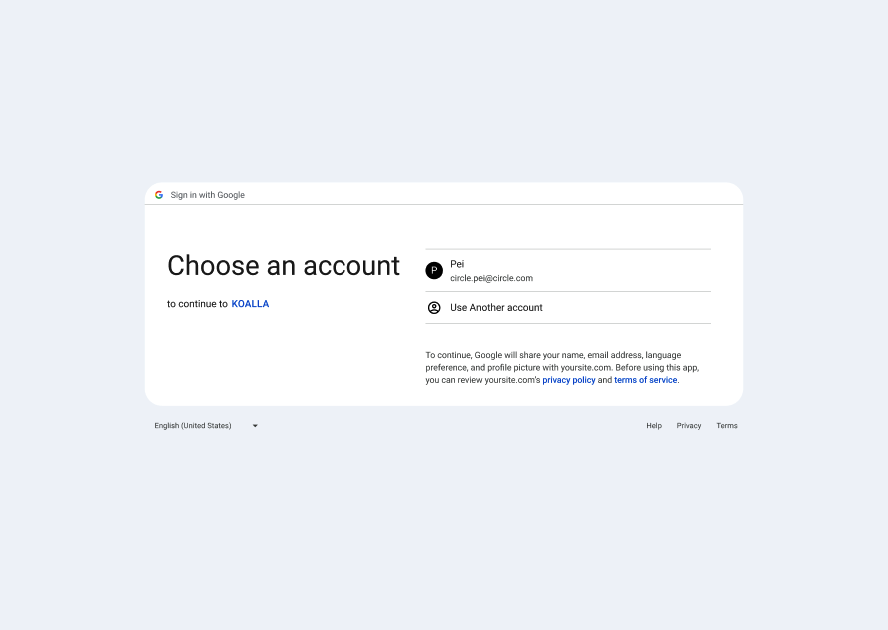
The social logins authentication method allows your users to log in to your
application with their Google, Facebook, or Apple accounts. This eliminates the
need for them to memorize seed phrases for private key management. Once you
initialize a user, Circle creates a wallet for them using multi-party
computation (MPC) technology.
 **Additional social providers**
If you want your application to offer a different social provider, join
[Circle on Discord](https://discord.com/invite/buildoncircle) to make your
request.
### Create a wallet with social logins
Circles handles the logic for social logins and requires you to:
1. Obtain the required IDs from the following providers:
* **Google** has a dedicated Client ID for Web, iOS, and Android platforms.
See the Google doc:
[Get your Google API client ID](https://developers.google.com/identity/oauth2/web/guides/get-google-api-clientid).
* **Facebook** has an App ID. See the Facebook doc:
[Facebook App Development](https://developers.facebook.com/docs/development).
* **Apple** has a Bundle ID for iOS, and a Service ID for Web and Android
platforms. See the Apple doc:
[Register an App ID](https://developer.apple.com/help/account/manage-identifiers/register-an-app-id/).
2. Add the IDs to the [Circle Developer Console](https://console.circle.com/) by
navigating to **Configurator > Authentication Methods > Social Logins**.
3. Ensure the ID settings for your application and the Console always match.
Once the above conditions are met, you can initialize the SDK.
**Lost credentials**
For security reasons, Circle cannot help if your user loses their credentials or
is blocked by the social identity provider. Your user must reach out to the
social provider to recover their credentials. Note that it can take a few weeks
to recover a banned Facebook account.
**One user ID per social account**
Only one user ID can be linked to one social account. For example, if a user
signs up using their Google account, and then signs up again using their Apple
account, two user IDs are created.
### User onboarding and wallet creation process
To test how to onboard a user and create a wallet with our sample app on web,
see
[Quickstarts for Social Logins or Email Authentication](/w3s/quickstart-for-social-logins).
### User onboarding with social logins
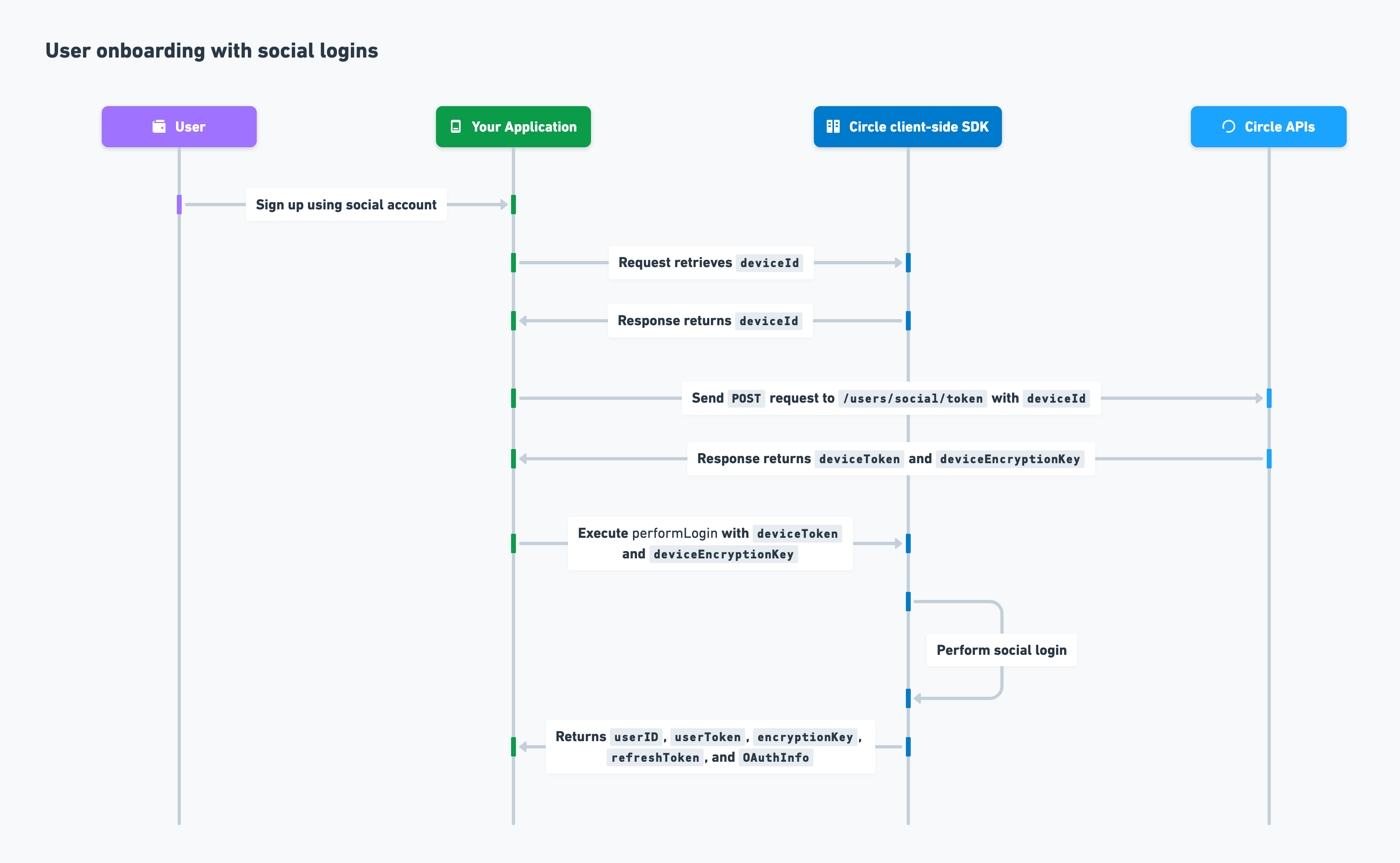
The process for onboarding a user with social logins onto your application is as
follows:
1. You include your API key in a `POST` request to the `/users/social/token`
endpoint with `deviceId` included in the request body.
2. Circle returns `deviceToken` and `deviceEncryptionKey` in the response.
3. You invoke the client-side SDK to execute `performLogin` with
`deviceToken`and`deviceEncryptionKey`provided.
4. Circle executes the Social login flow and returns`userID`, `userToken`,
`encryptionKey`, `refreshToken`, and `OAuthInfo`.
**Additional social providers**
If you want your application to offer a different social provider, join
[Circle on Discord](https://discord.com/invite/buildoncircle) to make your
request.
### Create a wallet with social logins
Circles handles the logic for social logins and requires you to:
1. Obtain the required IDs from the following providers:
* **Google** has a dedicated Client ID for Web, iOS, and Android platforms.
See the Google doc:
[Get your Google API client ID](https://developers.google.com/identity/oauth2/web/guides/get-google-api-clientid).
* **Facebook** has an App ID. See the Facebook doc:
[Facebook App Development](https://developers.facebook.com/docs/development).
* **Apple** has a Bundle ID for iOS, and a Service ID for Web and Android
platforms. See the Apple doc:
[Register an App ID](https://developer.apple.com/help/account/manage-identifiers/register-an-app-id/).
2. Add the IDs to the [Circle Developer Console](https://console.circle.com/) by
navigating to **Configurator > Authentication Methods > Social Logins**.
3. Ensure the ID settings for your application and the Console always match.
Once the above conditions are met, you can initialize the SDK.
**Lost credentials**
For security reasons, Circle cannot help if your user loses their credentials or
is blocked by the social identity provider. Your user must reach out to the
social provider to recover their credentials. Note that it can take a few weeks
to recover a banned Facebook account.
**One user ID per social account**
Only one user ID can be linked to one social account. For example, if a user
signs up using their Google account, and then signs up again using their Apple
account, two user IDs are created.
### User onboarding and wallet creation process
To test how to onboard a user and create a wallet with our sample app on web,
see
[Quickstarts for Social Logins or Email Authentication](/w3s/quickstart-for-social-logins).
### User onboarding with social logins
The process for onboarding a user with social logins onto your application is as
follows:
1. You include your API key in a `POST` request to the `/users/social/token`
endpoint with `deviceId` included in the request body.
2. Circle returns `deviceToken` and `deviceEncryptionKey` in the response.
3. You invoke the client-side SDK to execute `performLogin` with
`deviceToken`and`deviceEncryptionKey`provided.
4. Circle executes the Social login flow and returns`userID`, `userToken`,
`encryptionKey`, `refreshToken`, and `OAuthInfo`.
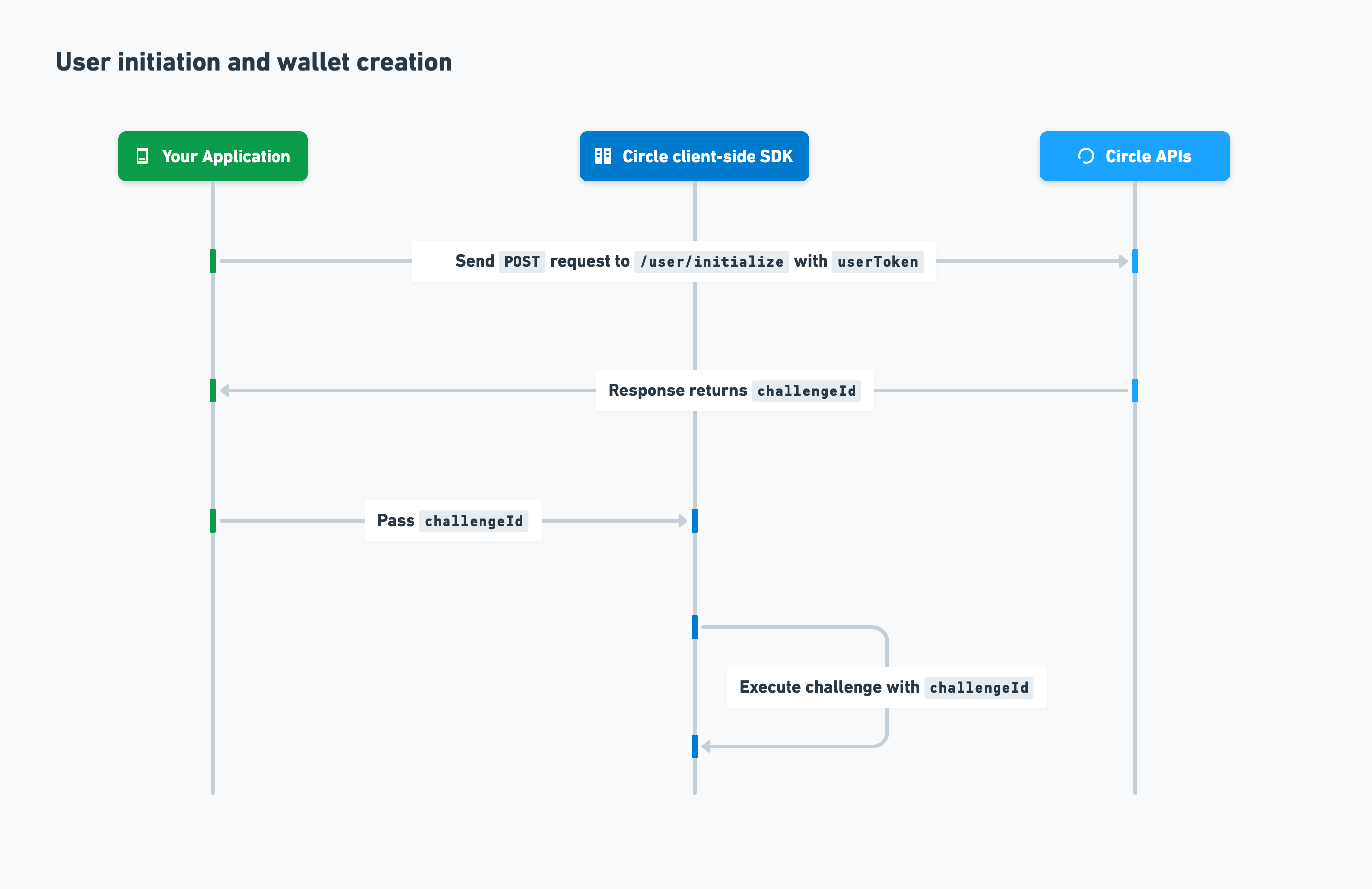
 ### User initiation and wallet creation
After you've onboarded your user, you can initialize the user and create a
wallet. The process is as follows:
1. To initialize the user, you send a `POST`request to
the`/user/initialize`endpoint with`userToken`included in the request body.
2. Circle returns`challengeId`in the response.
3. You create a Web3 wallet for your user by passing`challengeId` to the
client-side SDK for execution.
### User initiation and wallet creation
After you've onboarded your user, you can initialize the user and create a
wallet. The process is as follows:
1. To initialize the user, you send a `POST`request to
the`/user/initialize`endpoint with`userToken`included in the request body.
2. Circle returns`challengeId`in the response.
3. You create a Web3 wallet for your user by passing`challengeId` to the
client-side SDK for execution.
 ## Email
The email authentication method allows you to onboard users by sending a OTP to
their email address. This eliminates the need for them to memorize seed phrases
for private key management. Once you initialize a user, Circle creates a wallet
for them using multi-party computation (MPC) technology.
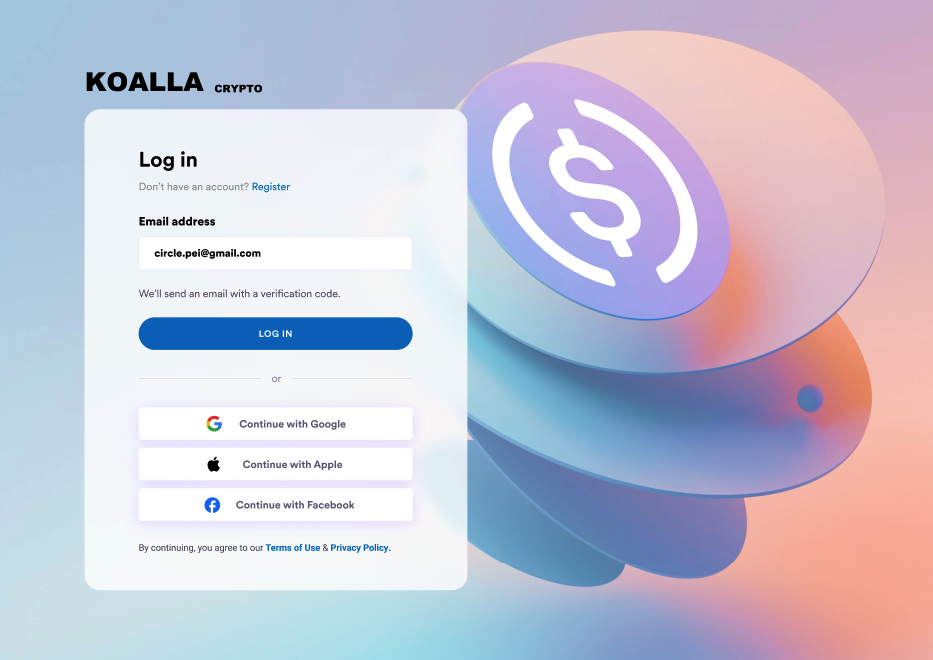
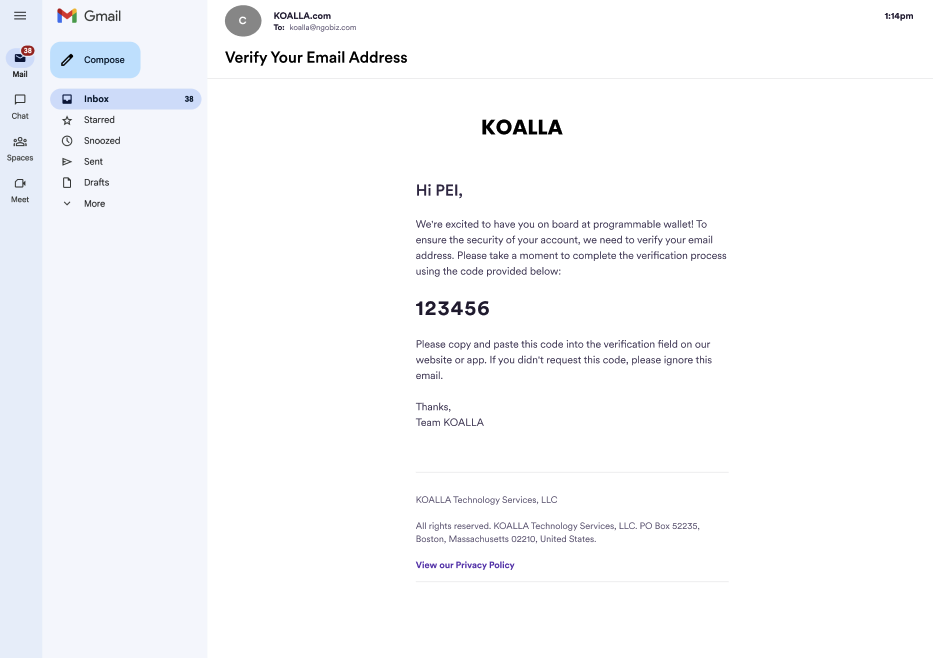
The following example UX screens show how a user can be log in with their email
address, receive an email containing the OTP verification code in their email
inbox, and enter the verification code on the verification screen.
## Email
The email authentication method allows you to onboard users by sending a OTP to
their email address. This eliminates the need for them to memorize seed phrases
for private key management. Once you initialize a user, Circle creates a wallet
for them using multi-party computation (MPC) technology.
The following example UX screens show how a user can be log in with their email
address, receive an email containing the OTP verification code in their email
inbox, and enter the verification code on the verification screen.
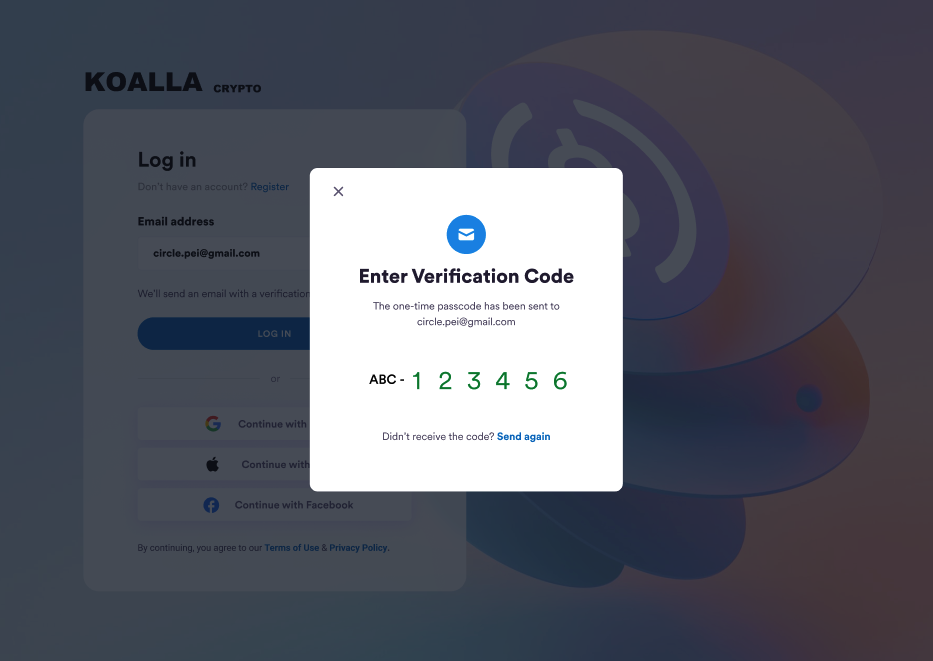
 **Customize UI**
The verification code prompt is predefined by SDK. You can customize UI elements
including copy, color, and images. For more, see Web SDK UI Customizations.
**Send again**
When **Send again** is selected, the SDK sends you an event to the registered
listener. You can then make a request to the `POST/users/email/resendOTP`
endpoint, which emails the user a new OTP.
### Create a wallet with email
Before initializing the SDK:
1. Log in to the [Circle Developer Console](https://console.circle.com/), then
go to **Wallets > User Controlled > Configurator > Email**.
2. Enter your SMTP data. Your SMTP credentials are always encrypted.
3. Customize your OTP email content:
* Enter a **From** email address and **Subject** for the email’s subject
line.
* Modify the content in the **Email Template**.
4. Select **SEND TEST EMAIL** to send a OTP email and check if your template
appears as expected.
Once the above conditions are met, you can initialize the SDK.
**\{\{ email.otp }}**
`{{ email.otp }}` is a dynamic value reserved for the OTP and must be included
in the message. If not, users receiving the email will not receive the OTP.
### User onboarding and wallet creation process
To test how to onboard a user and create a wallet with our sample app on web,
see
[Quickstarts for Social Logins or Email Authentication](/w3s/quickstart-for-social-logins).
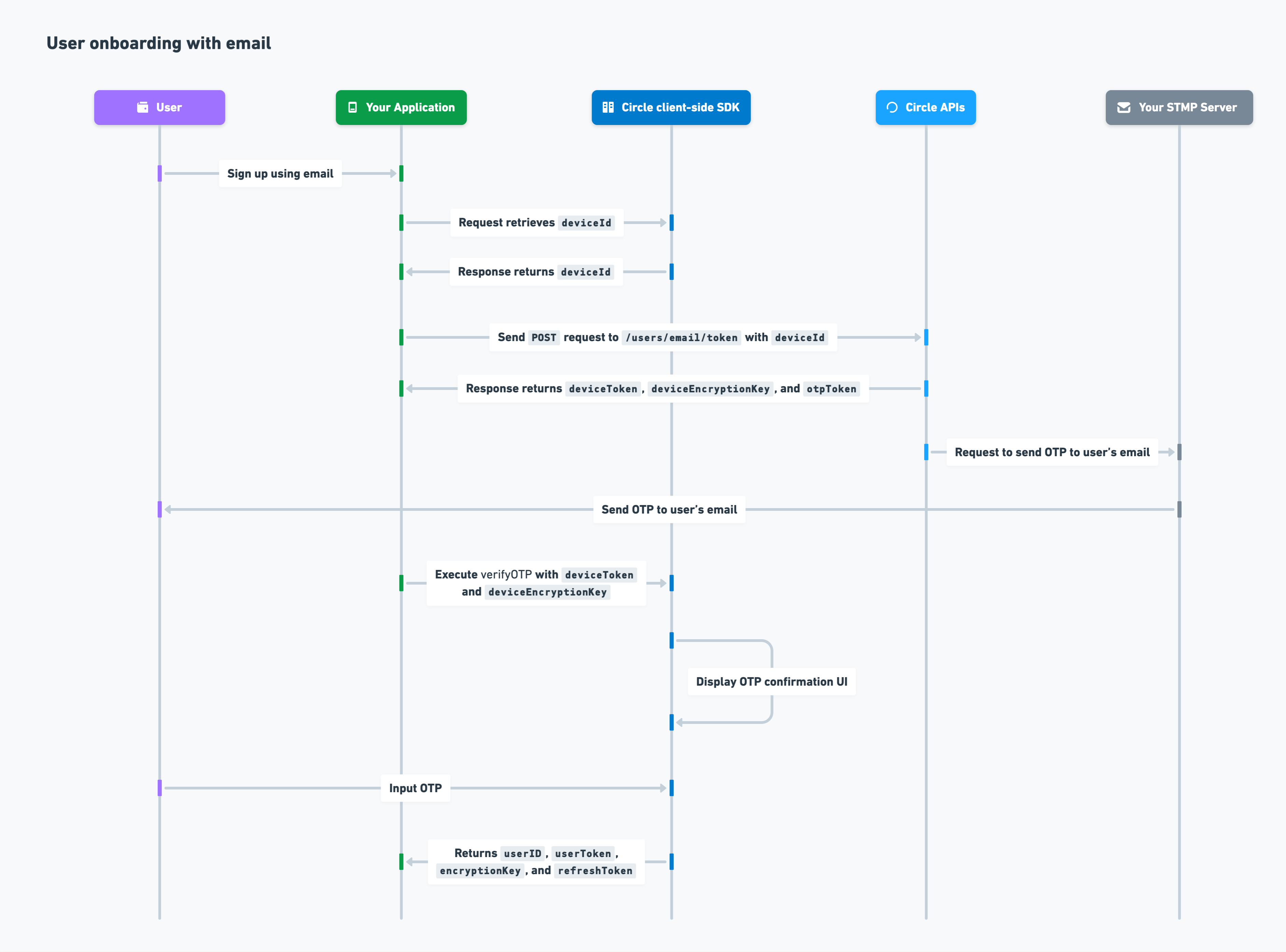
### User onboarding with email
The process for onboarding a user with email onto your application is as
follows:
1. You include your API key in a `POST` request to the `/users/email/token`
endpoint with `deviceId` included in the request body.
2. Circle returns `otpToken`, `deviceToken`, and `deviceEncryptionKey` in the
response.
3. Circle requests your SMTP server to send an OTP email to your user’s email.
4. You pass `verifyOTP`,`deviceToken`, and `deviceEncryptionKey` to the
client-side SDK.
5. Circle prompts your user to enter the OTP.
6. Circle validates the OTP token and OTP and returns `userId`.
7. Circle executes the SSO login flow and returns `userID`, `userToken`,
`encryptionKey`, and `refreshToken`.
**Customize UI**
The verification code prompt is predefined by SDK. You can customize UI elements
including copy, color, and images. For more, see Web SDK UI Customizations.
**Send again**
When **Send again** is selected, the SDK sends you an event to the registered
listener. You can then make a request to the `POST/users/email/resendOTP`
endpoint, which emails the user a new OTP.
### Create a wallet with email
Before initializing the SDK:
1. Log in to the [Circle Developer Console](https://console.circle.com/), then
go to **Wallets > User Controlled > Configurator > Email**.
2. Enter your SMTP data. Your SMTP credentials are always encrypted.
3. Customize your OTP email content:
* Enter a **From** email address and **Subject** for the email’s subject
line.
* Modify the content in the **Email Template**.
4. Select **SEND TEST EMAIL** to send a OTP email and check if your template
appears as expected.
Once the above conditions are met, you can initialize the SDK.
**\{\{ email.otp }}**
`{{ email.otp }}` is a dynamic value reserved for the OTP and must be included
in the message. If not, users receiving the email will not receive the OTP.
### User onboarding and wallet creation process
To test how to onboard a user and create a wallet with our sample app on web,
see
[Quickstarts for Social Logins or Email Authentication](/w3s/quickstart-for-social-logins).
### User onboarding with email
The process for onboarding a user with email onto your application is as
follows:
1. You include your API key in a `POST` request to the `/users/email/token`
endpoint with `deviceId` included in the request body.
2. Circle returns `otpToken`, `deviceToken`, and `deviceEncryptionKey` in the
response.
3. Circle requests your SMTP server to send an OTP email to your user’s email.
4. You pass `verifyOTP`,`deviceToken`, and `deviceEncryptionKey` to the
client-side SDK.
5. Circle prompts your user to enter the OTP.
6. Circle validates the OTP token and OTP and returns `userId`.
7. Circle executes the SSO login flow and returns `userID`, `userToken`,
`encryptionKey`, and `refreshToken`.
 ### User initiation and wallet creation
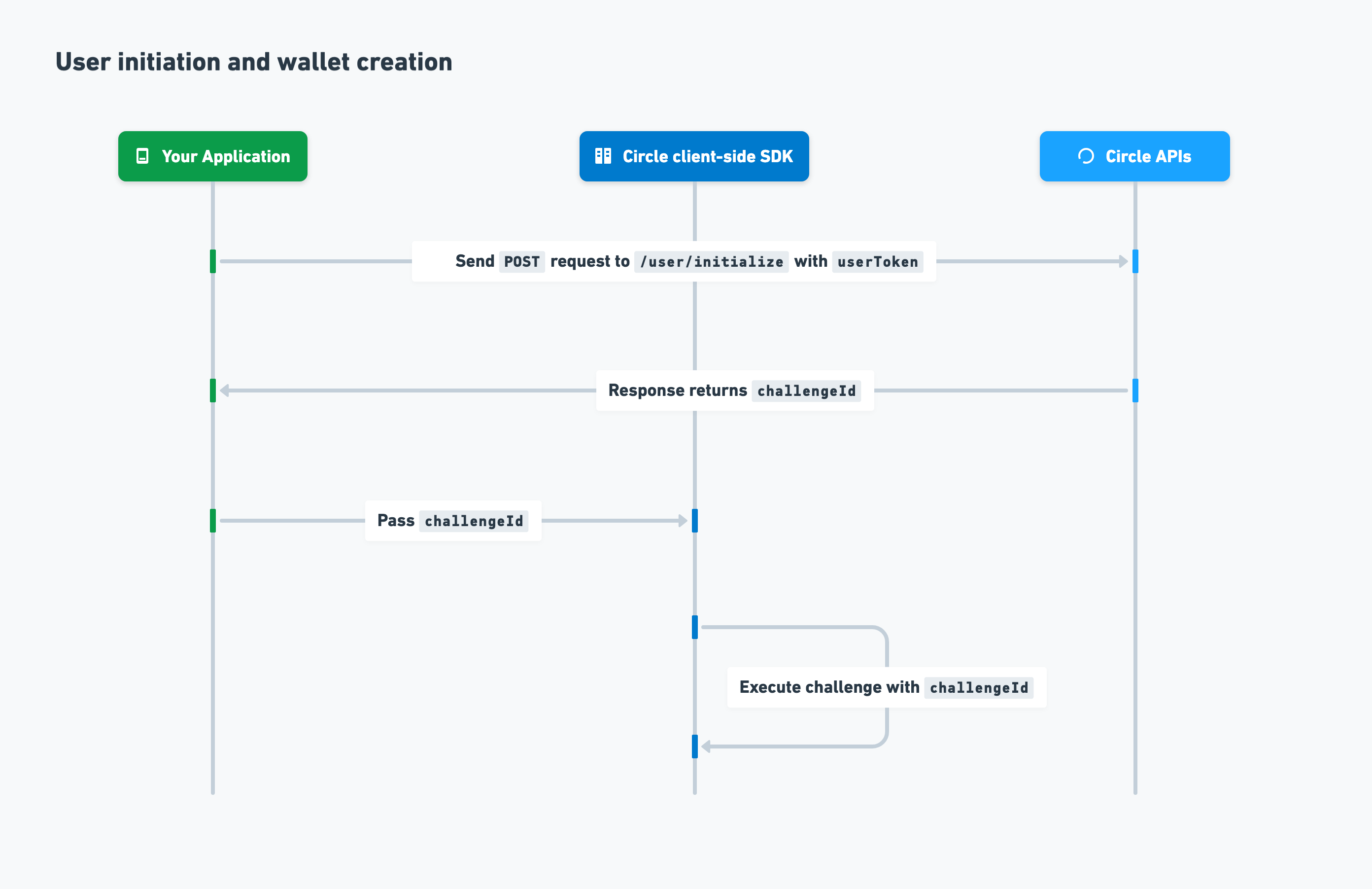
After you've onboarded your user, you can initialize the user and create a
wallet. The process is as follows:
1. To initialize the user, you send a `POST`request to
the`/user/initialize`endpoint with`userToken`included in the request body.
2. Circle returns`challengeId`in the response.
3. You create a Web3 wallet for your user by passing`challengeId` to the
client-side SDK for execution.
### User initiation and wallet creation
After you've onboarded your user, you can initialize the user and create a
wallet. The process is as follows:
1. To initialize the user, you send a `POST`request to
the`/user/initialize`endpoint with`userToken`included in the request body.
2. Circle returns`challengeId`in the response.
3. You create a Web3 wallet for your user by passing`challengeId` to the
client-side SDK for execution.
 ### User token and refresh token
The refresh token concept is for social login and email authentication methods
only.
A user token is the session identifier. It automatically expires 14 days after
it was generated. Upon expiration, your users are logged out of your
application.
To prevent your users from being logged out too frequently, you can include the
existing live user token, its corresponding `refreshToken`, and a new user token
in a `POST` request to the
[`/users/token/refresh`](/api-reference/wallets/user-controlled-wallets/refresh-user-token)
endpoint. The new user token is returned in the response.
## PIN
Users invoke usage of their private keys through their specified PIN code when
signing up for your application. The PIN is then used to encrypt and decrypt
access to their private keys when creating a transaction on the blockchain. For
more, see Quickstarts.
**PIN code storage**
Your users are ultimately responsible for accessing their wallets. You must
ensure they understand the importance of remembering their PIN code and answers
to their security questions.
### About PIN
A PIN is a 6-digit code that is chosen by the user and is required to authorize
interactions with their wallet. A PIN is encrypted as the user enters it on
their device, which ensures no one else has access to their PIN.
Since a PIN is required to access and authorize the movement of assets, it is
extremely important that your users remember their PIN codes and never share it
with anyone. If a user enters an incorrect PIN more than three times, the PIN is
locked for 30 minutes.
### Biometrics
If you enable biometrics, your users can authorize signing actions using their
fingerprint or facial recognition on their mobile devices. This means a PIN is
no longer required for every transaction or signature request. Enabling
biometrics enhances security, provides a better user experience, and reduces the
likelihood of fraud.
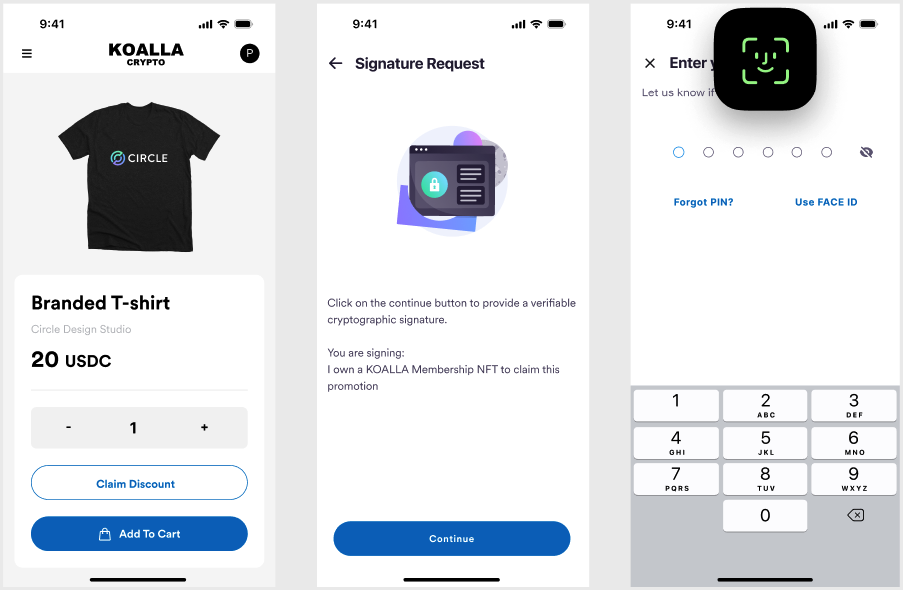
The following example UX screens show how users can authorize a purchase
transaction with biometrics.
### User token and refresh token
The refresh token concept is for social login and email authentication methods
only.
A user token is the session identifier. It automatically expires 14 days after
it was generated. Upon expiration, your users are logged out of your
application.
To prevent your users from being logged out too frequently, you can include the
existing live user token, its corresponding `refreshToken`, and a new user token
in a `POST` request to the
[`/users/token/refresh`](/api-reference/wallets/user-controlled-wallets/refresh-user-token)
endpoint. The new user token is returned in the response.
## PIN
Users invoke usage of their private keys through their specified PIN code when
signing up for your application. The PIN is then used to encrypt and decrypt
access to their private keys when creating a transaction on the blockchain. For
more, see Quickstarts.
**PIN code storage**
Your users are ultimately responsible for accessing their wallets. You must
ensure they understand the importance of remembering their PIN code and answers
to their security questions.
### About PIN
A PIN is a 6-digit code that is chosen by the user and is required to authorize
interactions with their wallet. A PIN is encrypted as the user enters it on
their device, which ensures no one else has access to their PIN.
Since a PIN is required to access and authorize the movement of assets, it is
extremely important that your users remember their PIN codes and never share it
with anyone. If a user enters an incorrect PIN more than three times, the PIN is
locked for 30 minutes.
### Biometrics
If you enable biometrics, your users can authorize signing actions using their
fingerprint or facial recognition on their mobile devices. This means a PIN is
no longer required for every transaction or signature request. Enabling
biometrics enhances security, provides a better user experience, and reduces the
likelihood of fraud.
The following example UX screens show how users can authorize a purchase
transaction with biometrics.
 ### Wallet recovery through security questions
When signing up for your application, users set up answers to security questions
after they specify their PIN. These answers are used in the wallet recovery
process.
If users lose or lock their PIN, they can unfreeze their wallets by going
through the recovery process. They must answer their chosen security questions
correctly. If the user incorrectly answers security questions more than three
times, the recovery process locks for 30 minutes.
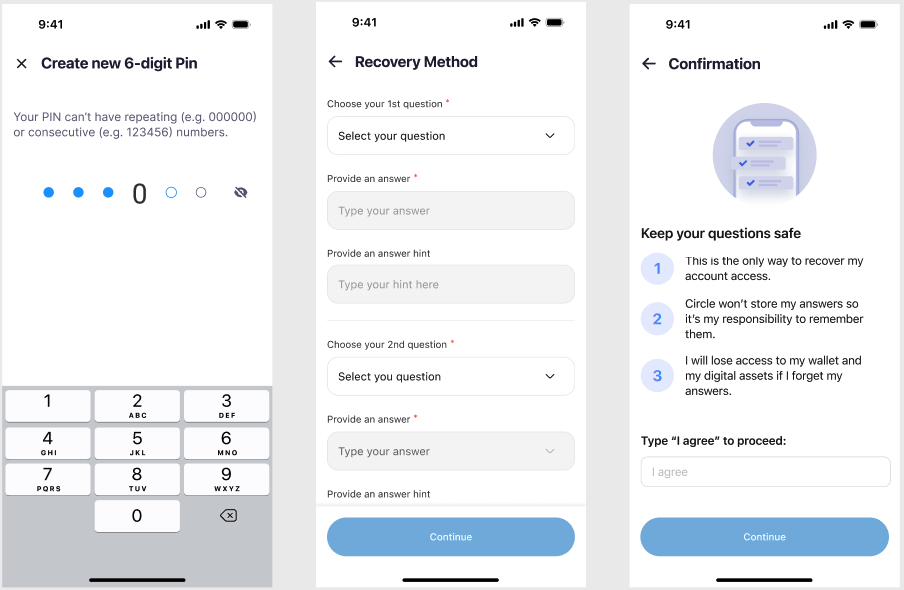
The following example UX screens show how users can specify a PIN and recovery
method during the onboarding process for your application.
### Wallet recovery through security questions
When signing up for your application, users set up answers to security questions
after they specify their PIN. These answers are used in the wallet recovery
process.
If users lose or lock their PIN, they can unfreeze their wallets by going
through the recovery process. They must answer their chosen security questions
correctly. If the user incorrectly answers security questions more than three
times, the recovery process locks for 30 minutes.
The following example UX screens show how users can specify a PIN and recovery
method during the onboarding process for your application.